Most people set up LinkedIn once and never touch the settings again. That’s a mistake. The right LinkedIn settings control who can see you, what LinkedIn shares about you, how much noise hits your inbox, and how safe your account is. Get them right once and LinkedIn works the way you want.
This is a complete, plain-English walkthrough of every setting worth knowing in 2026, starting with the two everyone asks about: private mode and dark mode.
Where to Find Your LinkedIn Settings
Click your photo (top right) → Settings & Privacy. You’ll see tabs for Account preferences, Sign in & security, Visibility, Data privacy, Advertising data, Notifications. Everything below lives in one of these.
The LinkedIn Settings That Actually Matter
1. Private Mode: browse profiles anonymously
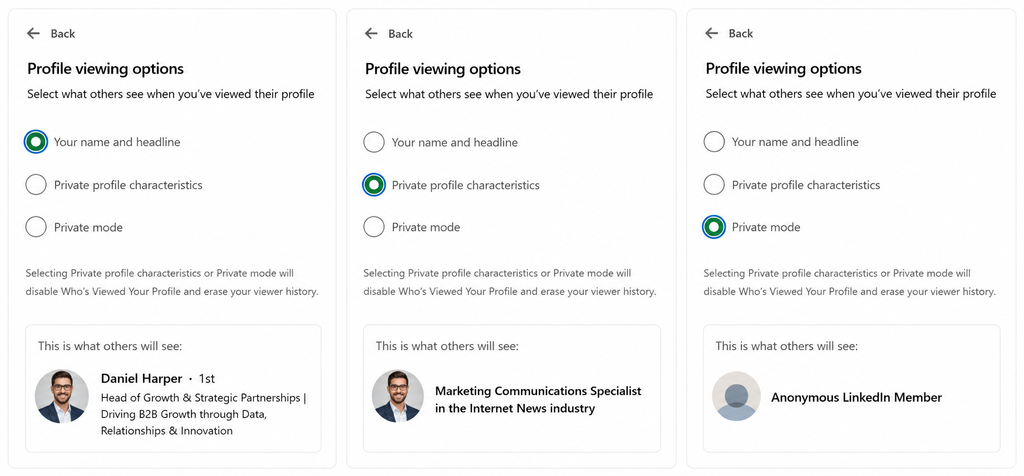
Visibility → Profile viewing options. By default, when you view someone’s profile, they can see it was you. Private mode lets you browse anonymously, either as your job title/industry only, or fully “Private mode.”
The trade-off: when you go private, you lose your own “Who’s viewed your profile” data. LinkedIn takes away your visibility when you take away theirs.
- Use private mode when: researching competitors, checking out a prospect before outreach, or browsing during a confidential job search.
- Keep it off when: you want people to notice you viewed them, profile views are a subtle, legitimate way to get on someone’s radar.
🕊️ From the Pigeonhole
Profile views are one of the most underrated warm signals in outreach, a view often gets noticed and prompts a reply, without you sending a single message. In PigeonScout sequences, a well-timed profile visit before a connection request is a gentle, human touch that lifts acceptance rates. It’s the opposite of spraying requests, and far safer.
2. Dark Mode: easier on the eyes
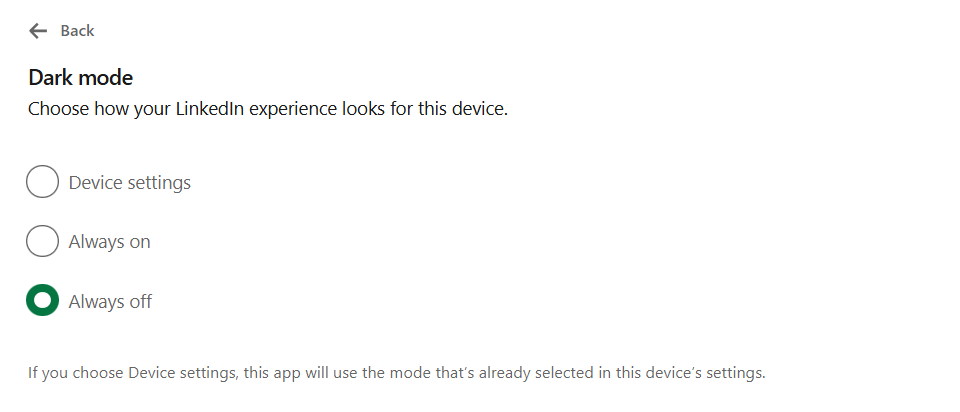
Account preferences → Display → Dark mode. Set it to On, Off, or “System” (matches your device). Purely cosmetic, but if you live on LinkedIn, it’s a nice one.
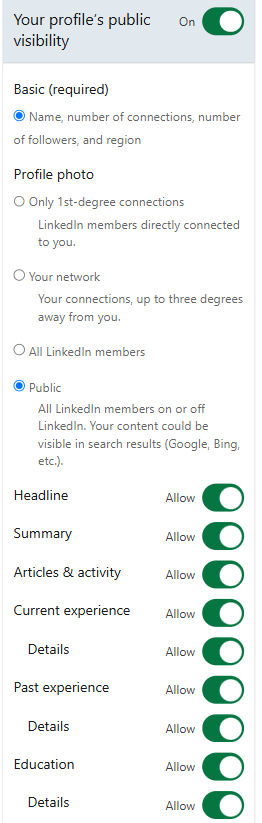
3. Edit your public profile & custom URL
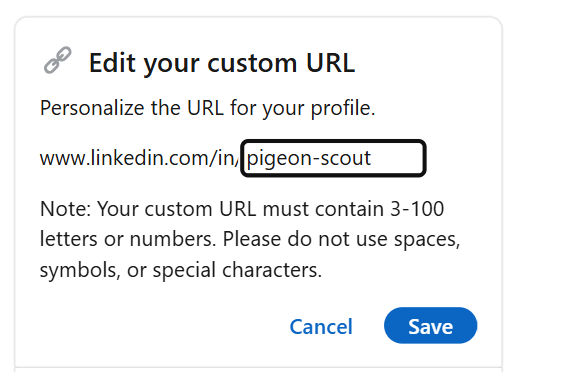
Visibility → Edit your public profile. Control what shows up when someone finds you on Google, and claim a clean custom URL (e.g., linkedin.com/in/yourname). We cover this fully in [How to Change Your LinkedIn URL].
4. Who can see your connections
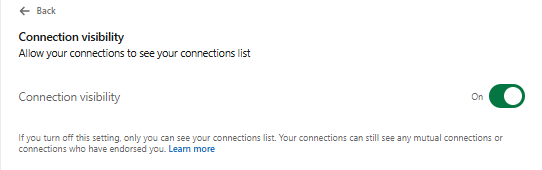
Visibility → Connections. By default your connections can see your other connections. Switch to “Only you” if you don’t want competitors mining your network, common for salespeople and recruiters.
5. Who can see your activity and “active” status
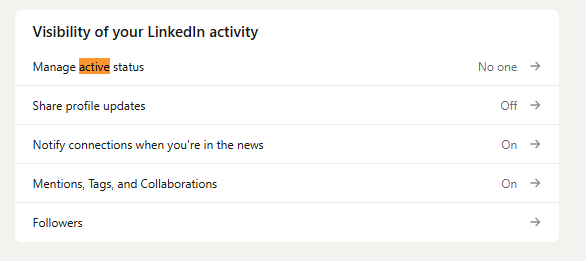
Visibility controls two things people forget about:
- Active status: the green dot showing you’re online. Turn it off for connections, everyone, or leave it on.
- Sharing profile edits: whether your network gets notified when you update your profile. Turn this off before doing a big profile overhaul so you don’t spam your network with 20 notifications.
6. Notifications: kill the noise
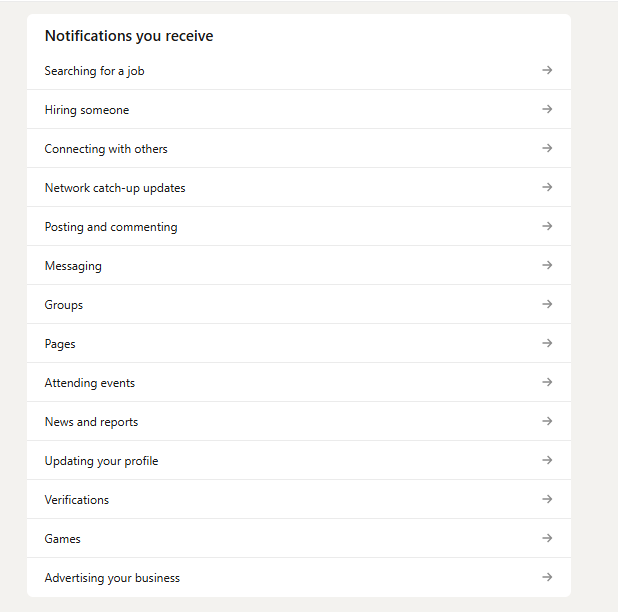
Notifications tab. LinkedIn’s defaults are loud. Turn off the ones that don’t serve you (birthdays, “people you may know,” most engagement pings) and keep the ones that do (messages, connection requests, post comments). Do the same for email under Communications.
7. Sign in & security: protect the account
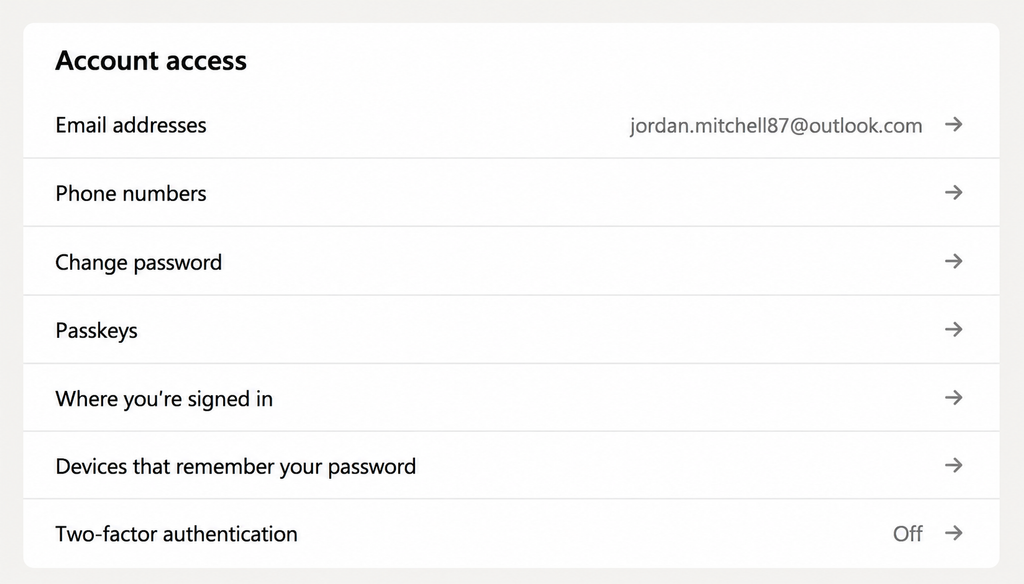
Sign in & security. Turn on two-step verification. Review “Where you’re signed in” and sign out of old devices. This is the single most important setting for anyone who’s invested time building a profile.
🕊️ Why security settings matter for outreach
A hijacked or compromised account is game over for outreach. But there’s a subtler point: LinkedIn watches for logins from unusual locations and unfamiliar devices. If you use any third-party tool, that tool’s login behavior matters. PigeonScout runs from dedicated, consistent infrastructure per account: no risky shared IPs, no logins pinging from three countries in an hour. It’s part of the same safety-by-architecture approach that protects your account. [See how PigeonScout protects accounts →]
8. Data privacy: control what LinkedIn shares
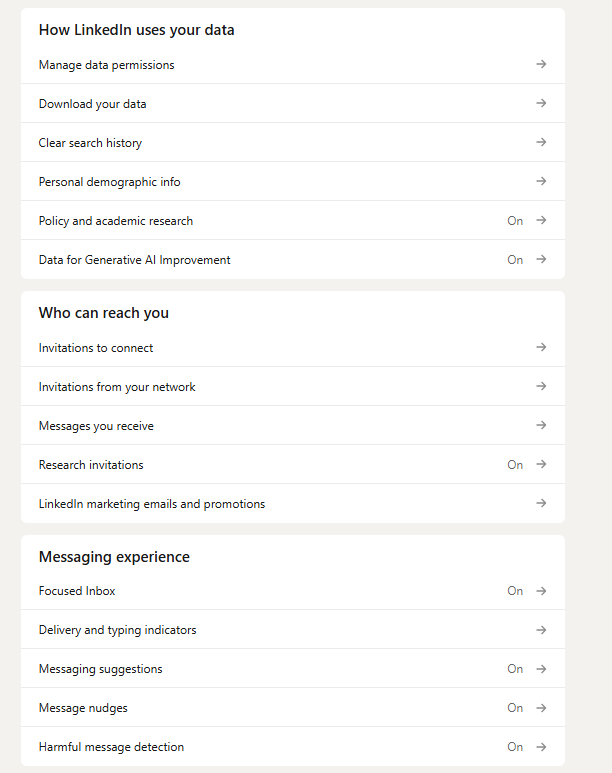
Data privacy tab lets you manage:
- Who can reach you (connection request and messaging permissions)
- How LinkedIn uses your data for research and personalization
- Downloading your data (get a full archive of your account)
- Managing your synced contacts
9. Advertising data: reduce targeting
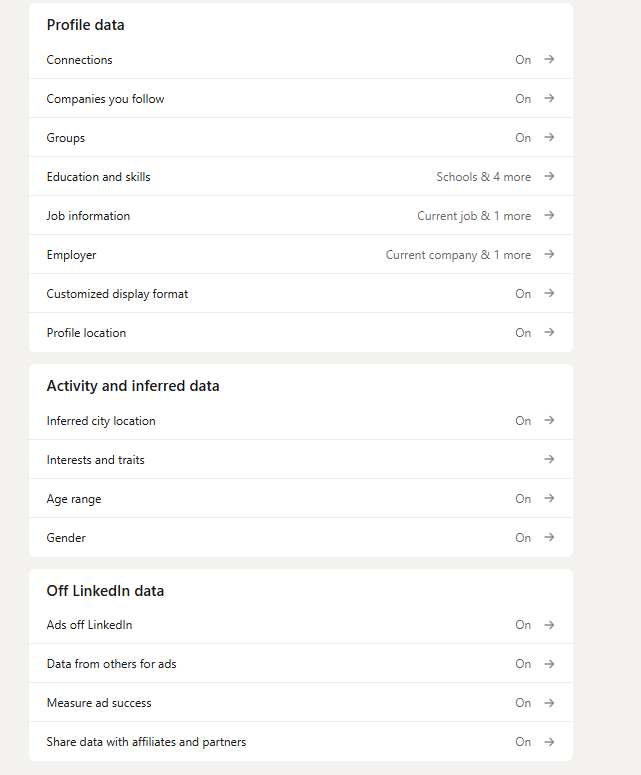
Advertising data tab. Toggle off the categories you don’t want advertisers using, interests, employer, connections, and more. Won’t remove ads, but makes them less eerily specific.
A 5-Minute Settings Checklist
Run through this once and you’re set:
- ✅ Turn on two-step verification
- ✅ Set private mode to your preference
- ✅ Turn off “share profile edits” before any big update
- ✅ Decide who sees your connections
- ✅ Turn off active status if you value focus
- ✅ Trim notifications to what matters
- ✅ Claim your custom public URL
- ✅ Review advertising data categories
Frequently Asked Questions
How do I turn on private mode on LinkedIn? Go to Settings & Privacy → Visibility → Profile viewing options, and choose “Private mode” (fully anonymous) or your job title/industry only. Remember: going private removes your own “Who’s viewed your profile” data.
Does LinkedIn have a dark mode? Yes. Settings & Privacy → Account preferences → Display → Dark mode. Choose On, Off, or System.
Can I stop LinkedIn from notifying my network when I update my profile? Yes, Settings & Privacy → Visibility → “Share profile updates with your network.” Turn it off before a big overhaul, then turn it back on if you want a specific change announced.
How do I hide my connections on LinkedIn? Settings & Privacy → Visibility → Connections → set to “Only you.” Your first-degree connections will still see any mutual connections you share.
Which LinkedIn setting is most important? Two-step verification, without question. It protects the account you’ve invested real effort into building.
The Bottom Line
Your LinkedIn settings are a five-minute investment that pays off every day, more privacy where you want it, more visibility where it helps, and a locked-down account you can build on safely.
👉 Read next: [Is LinkedIn Automation Safe? What Actually Gets You Flagged] and [How to Change Your LinkedIn URL].
🕊️ Building outreach on top of a safe account?
Great settings protect one account. PigeonScout protects all of them, dedicated infrastructure, human-paced activity, and safety limits built in, so agencies running 5–15 senders never wake up to a wave of restrictions. [See how it works →]