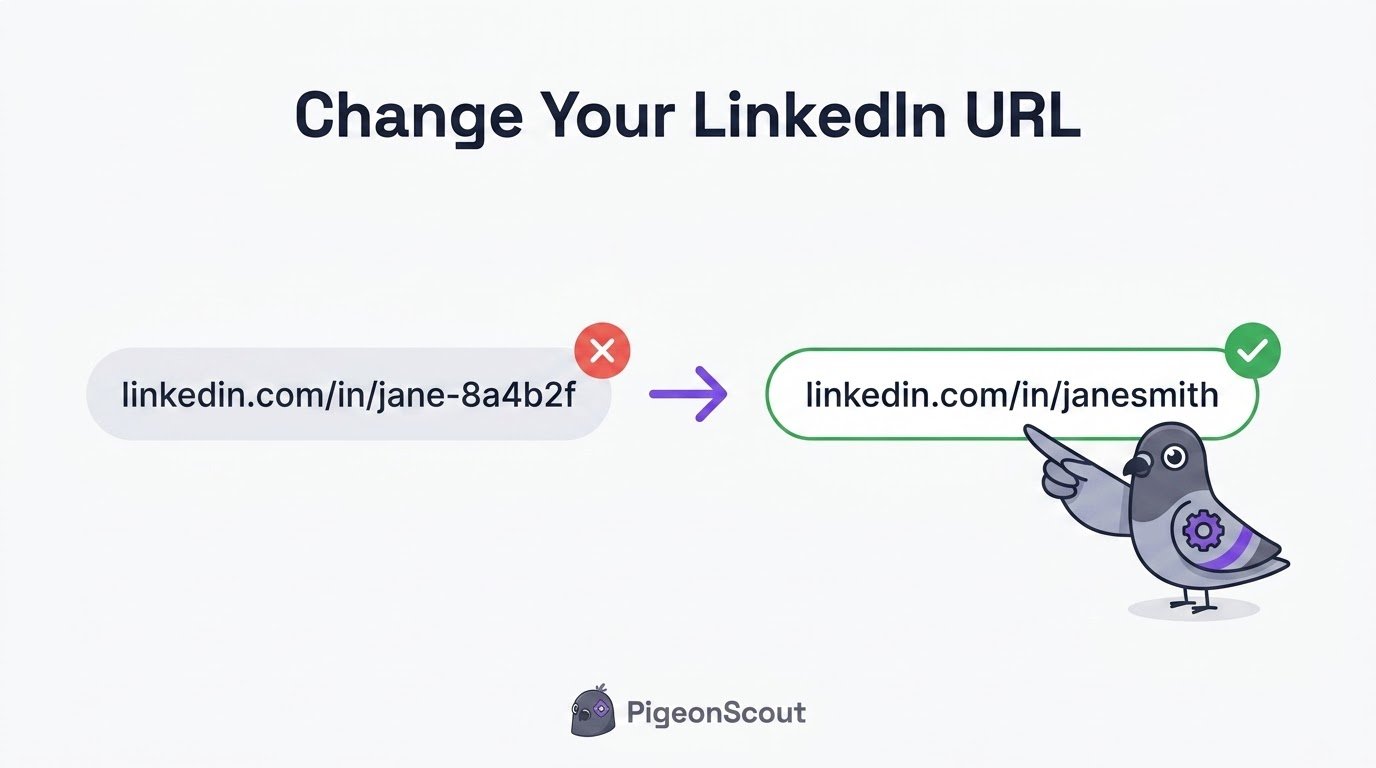
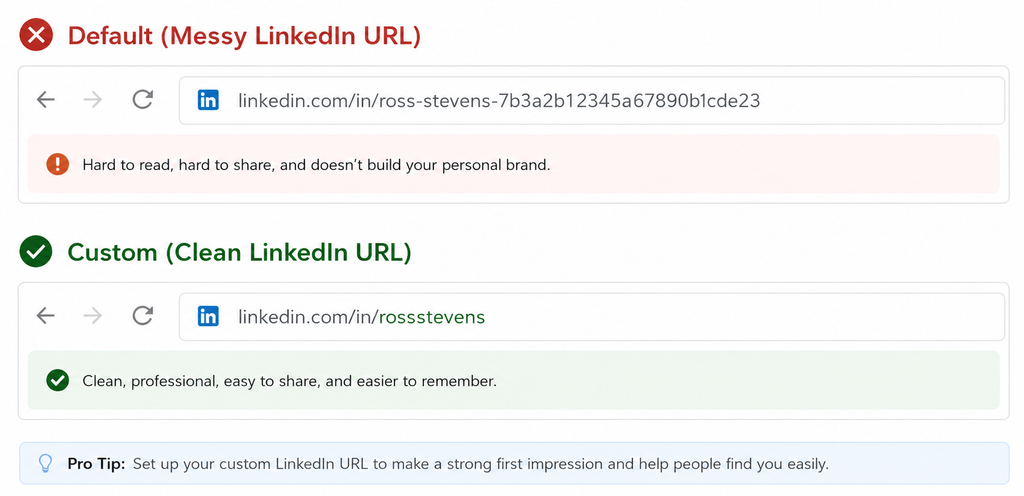
By default, LinkedIn hands you a messy profile URL full of random numbers and letters, something like linkedin.com/in/jane-smith-8a4b2f19. It works, but it looks unprofessional on a résumé, a business card, or an email signature.
The good news: changing it takes under a minute. Here’s exactly how to change your LinkedIn URL on desktop and mobile, and why that small tweak is worth doing today.
Why a Custom LinkedIn URL Matters
A clean, custom URL (linkedin.com/in/janesmith) does a few quiet but real things:
- Looks professional anywhere you share it: résumés, email signatures, business cards, portfolios.
- Is easy to remember and say out loud, which matters when someone’s typing it after a call or event.
- Helps you get found, since a keyword-clean URL is tidier for search and sharing.
- Signals attention to detail. A random string of numbers quietly says “I didn’t bother.” A clean one says the opposite.
It’s a five-second impression that shows up in a lot of places. Worth getting right.
How to Change Your LinkedIn URL, Step by Step (Desktop)
- Click Me (your photo, top right), then View Profile.
- On your profile, look to the top right and click Edit public profile & URL.
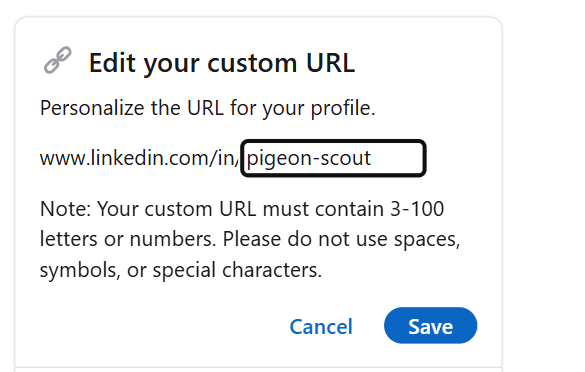
- On the right side, under Edit your custom URL, click the pencil icon next to your current URL.
- Type your new custom URL in the box (see the naming rules below).
- Click Save.
That’s it. Your new URL is live immediately.
How to Change Your LinkedIn URL on Mobile
- Open the LinkedIn app and tap your profile photo, then View Profile.
- Tap the settings gear (or the three-dot menu, depending on your app version).
- Find Edit public profile / Contact info and open the public profile settings.
- Edit the custom URL field and save.
If your app version hides this option, the quickest fix is to open LinkedIn in your phone’s browser (not the app) and follow the desktop steps above.
LinkedIn Custom URL Naming Rules
A few limits to know before you pick one:
- 3 to 100 characters, letters and numbers only (no spaces or most symbols).
- Must be unique. If your name is taken, add a middle initial, your profession, or a number.
- You can change it up to 5 times in 6 months, so don’t churn through them.
- When you claim a new one, the old URL stops working, so update it wherever you’ve shared it.
Good options if your name is taken:
- linkedin.com/in/janesmithmarketing
- linkedin.com/in/janedsmith
- linkedin.com/in/janesmithcpa
🕊️ From the PigeonScout nest
Small detail, real signal. A clean profile URL is one of many little cues that make an account look established and human, and established accounts are treated more gently by LinkedIn’s systems. It’s the same principle behind everything we build at PigeonScout: the more your presence looks like a real professional’s, the safer your outreach is. Tidy the URL, finish the profile, then scale.
After You Change It: Update These Places
Since your old URL breaks, refresh it wherever it lives:
- Email signature
- Résumé and cover letter
- Business cards
- Portfolio or personal website
- Other social profiles
- Any link-in-bio tools
Frequently Asked Questions
How do I change my LinkedIn URL? On desktop: View Profile, then Edit public profile & URL, then click the pencil next to your custom URL, type your new one, and save. It goes live instantly.
Can I change my LinkedIn URL back to the old one? Only if no one else has claimed it in the meantime. Once you switch, your old URL is released and may be taken. You can change your URL up to five times in six months.
Why can’t I use my name in my LinkedIn URL? Custom URLs must be unique, so if someone already has yours, you’ll need a variation: add a middle initial, your profession, or a number.
Does changing my LinkedIn URL affect my profile or connections? No. It only changes the web address of your profile. Your content, connections, and history stay exactly the same. Just remember the old link will stop working.
The Bottom Line
Now you know how to change your LinkedIn URL and why it’s worth the 60 seconds. Claim a clean, professional address, update it everywhere you share your profile, and move on to the bigger wins.
👉 Read next: [LinkedIn Custom URL: The Complete Guide] and [How to Optimize Your LinkedIn Profile for Leads].