LinkedIn has more than a billion members, and for most professionals it’s now the single most important place to be found, hire, get hired, and win business. But if you’ve just created an account and you’re staring at a half-empty profile wondering what to do next, it can feel overwhelming.
This guide walks you through exactly how to use LinkedIn from day one, setting up a profile people actually trust, building a network, posting your first content, and staying on the right side of LinkedIn’s rules. No jargon, no fluff.
What Is LinkedIn, Really?
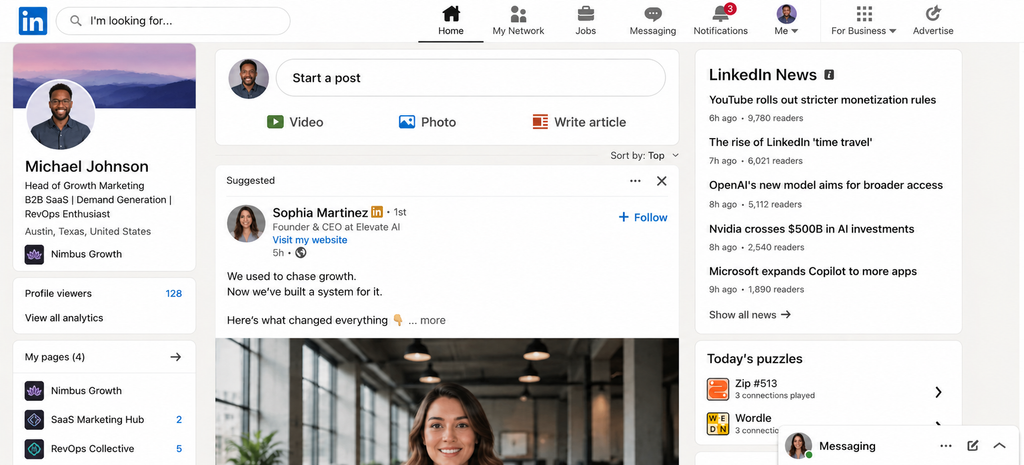
LinkedIn is a professional network. Think of it as a mix of your résumé, a business news feed, and a searchable directory of nearly every professional in the world. People use it for four main things:
- Being found: recruiters, clients, and partners search LinkedIn to find people like you.
- Networking: connecting with colleagues, peers, and prospects.
- Learning and sharing: reading and posting industry content in the feed.
- Opportunity: jobs, leads, partnerships, and clients.
The key mental shift: LinkedIn rewards people who show up consistently and add value, not people who blast everyone with sales pitches. Keep that in mind and everything below works better.
How to Use LinkedIn, Step by Step
Step 1: Create and secure your account
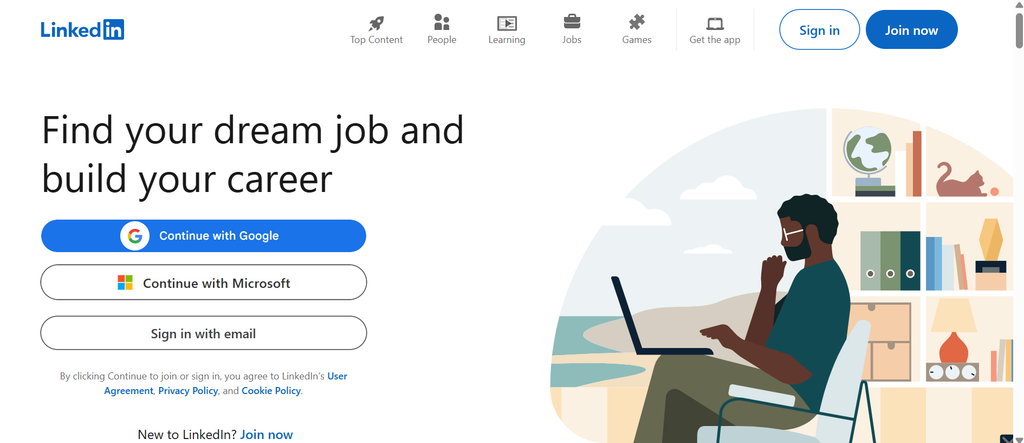
Sign up with a professional email address, confirm it, and immediately turn on two-step verification (Settings → Sign in & security). This one step protects the account you’re about to invest real effort into.
Step 2: Build a profile people trust
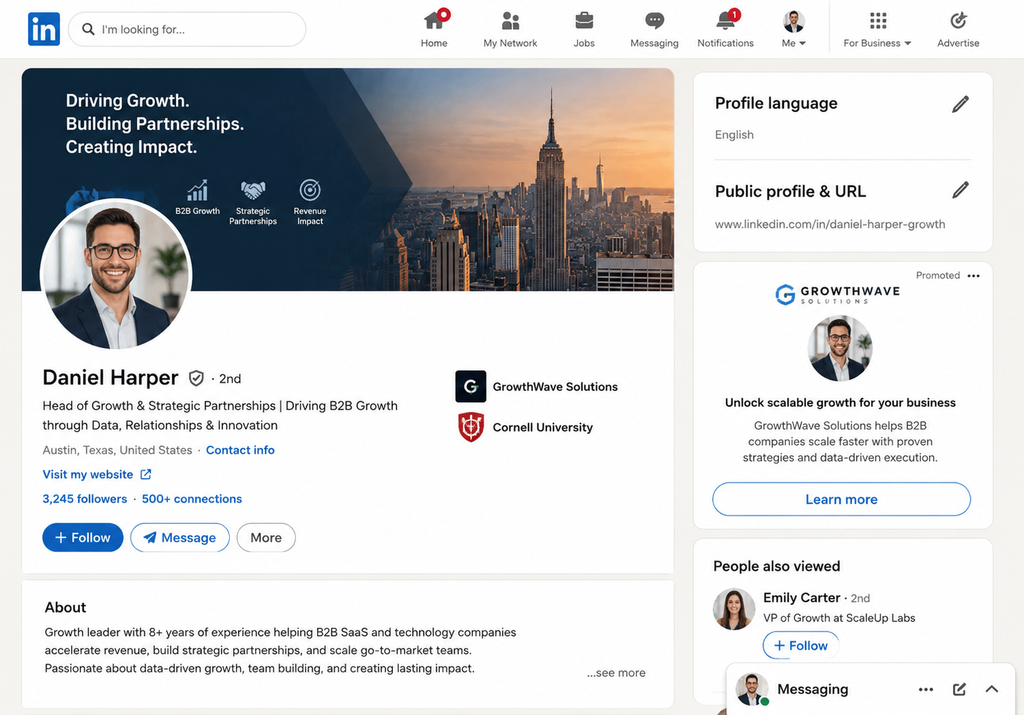
Your profile is your first impression. Focus on the parts that matter most:
- Profile photo: a clear, friendly headshot. Profiles with a photo get dramatically more views than those without.
- Banner image: the space behind your photo. Even a simple branded image beats the default grey.
- Headline: the line under your name. Don’t just write your job title; say who you help and how (e.g., “I help B2B agencies book meetings without getting their LinkedIn accounts banned”).
- About section: a short first-person summary of what you do, who you serve, and what makes you credible. End with a clear next step.
- Experience: list your roles with a sentence or two of real accomplishments, not just duties.
🕊️ From the PigeonScout nest
A trustworthy profile isn’t just about looking good, it’s the foundation of safe outreach later. LinkedIn’s systems are far more forgiving of accounts that look human and complete. When you eventually scale your outreach, a real, finished profile is your best protection against restrictions. It’s the first principle we built PigeonScout around: look human, stay safe.
Step 3: Build your network
An empty network means an empty feed. Start here:
- Use the “add connections” tool to sync contacts you already know.
- Connect with current and former colleagues, classmates, and people you’ve met.
- Follow companies and thought leaders in your industry.
Aim for genuine connections over big numbers. When you send a connection request, add a short personal note, and acceptance rates roughly double when you do.
Step 4: Learn to read the feed (and engage)
Your home feed shows posts from your connections and pages you follow. Spend your first week just reading and commenting. Thoughtful comments are the fastest, lowest-risk way to get noticed. They put you in front of the poster’s audience without you having to publish anything yourself.
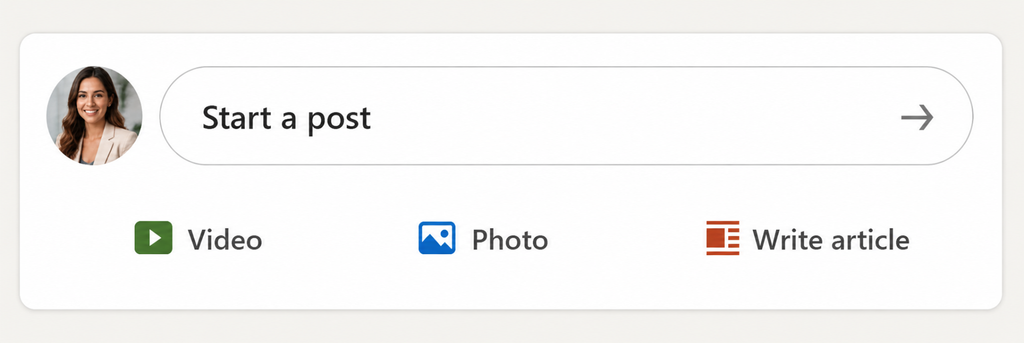
Step 5: Post your first content
You don’t need to be a “creator.” Start simple:
- Share a lesson you learned this week.
- Comment on an industry trend.
- Repost something useful and add your take.
Post 1–2 times a week to start. Consistency beats perfection.
Step 6: Use search to find people and opportunities
The search bar is LinkedIn’s most underused feature. Search for people by role, company, or location; search for jobs; search for content. You can filter results by connection degree, industry, and more. This is how you turn LinkedIn from a passive feed into an active tool.
Step 7: Use LinkedIn safely (the part most guides skip)
LinkedIn actively limits automated or spammy behavior. Even as a beginner, it’s worth knowing the guardrails so you never trip them:
- Don’t send dozens of connection requests in a burst. There are weekly limits (roughly 100–200 requests, and lower for newer accounts).
- Don’t paste the same copy-paste message to everyone.
- Don’t use sketchy “auto-connect” browser tools that operate recklessly. They’re the fastest way to get restricted.
- Do warm up a new account slowly over the first few weeks.
- Do keep your activity looking human: varied, spaced out, and genuinely useful.
🕊️ Why this matters for PigeonScout users
Most LinkedIn tools treat safety as an afterthought, and their users pay for it with restricted accounts. PigeonScout is built the other way around: safety by architecture. Human-paced sending, smart limits, and behavior that mirrors a real person are baked into the product, not bolted on. If you ever grow past manual outreach, that’s the difference between scaling and getting flagged.
Common Beginner Mistakes to Avoid
- Treating LinkedIn like a résumé graveyard. A finished profile is the start, not the finish.
- Pitching in the first message. Build a little rapport first.
- Ghost-town syndrome. Posting once and disappearing. Show up weekly.
- Ignoring your headline. It’s the most-read line on your profile after your name.
- Chasing follower counts. 500 relevant connections beat 5,000 random ones.
What to Do in Your First 30 Days
| Week | Focus |
|---|---|
| Week 1 | Complete your profile, turn on 2FA, connect with 20 people you know |
| Week 2 | Comment on 3 posts a day, follow 10 industry leaders |
| Week 3 | Publish your first 2 posts, send personalized connection requests |
| Week 4 | Review what got engagement, refine your headline and About section |
Frequently Asked Questions
Is LinkedIn free to use? Yes. A free (Basic) account covers everything a beginner needs: profile, networking, posting, searching, and applying to jobs. Paid Premium plans add extras like InMail and advanced search, but you don’t need them to start. (See our guide to [LinkedIn account types and premium plans].)
How often should I post on LinkedIn as a beginner? One to two times a week is plenty. Consistency matters more than volume. (More in [What to Post on LinkedIn].)
Is it safe to use LinkedIn automation as a beginner? Automation isn’t inherently unsafe, but reckless tools and aggressive settings are. If you’re brand new, focus on manual activity first and only automate once your account is established, using a tool built with safety limits.
How many connections should I have? There’s no magic number. Once you pass 500, LinkedIn simply displays “500+”. Focus on relevance over quantity.
Your Next Step
Now you know how to use LinkedIn: the account is set up, the profile looks human, and you know how to network, post, and stay safe. The next move is making your profile actually pull in opportunities.
👉 Read next: [How to Optimize Your LinkedIn Profile for Leads] and [LinkedIn Profile Keywords: How to Get Found].
🕊️ When you’re ready to scale
Doing outreach by hand is the right way to learn. But when the volume gets real, especially if you’re running LinkedIn for clients, PigeonScout helps you send at scale without the ban risk that sinks most tools. [See how it works →]
Leave a Reply